How to set up live translated captions for OBS
A practical setup sequence for microphone recognition, translated caption lines, chroma key, Browser Source, and subtitle exports.
Test record and current workspace
This is a capture of the published workspace used for the guide. The record below separates what was tested, what was observed, and what still depends on the browser or device.
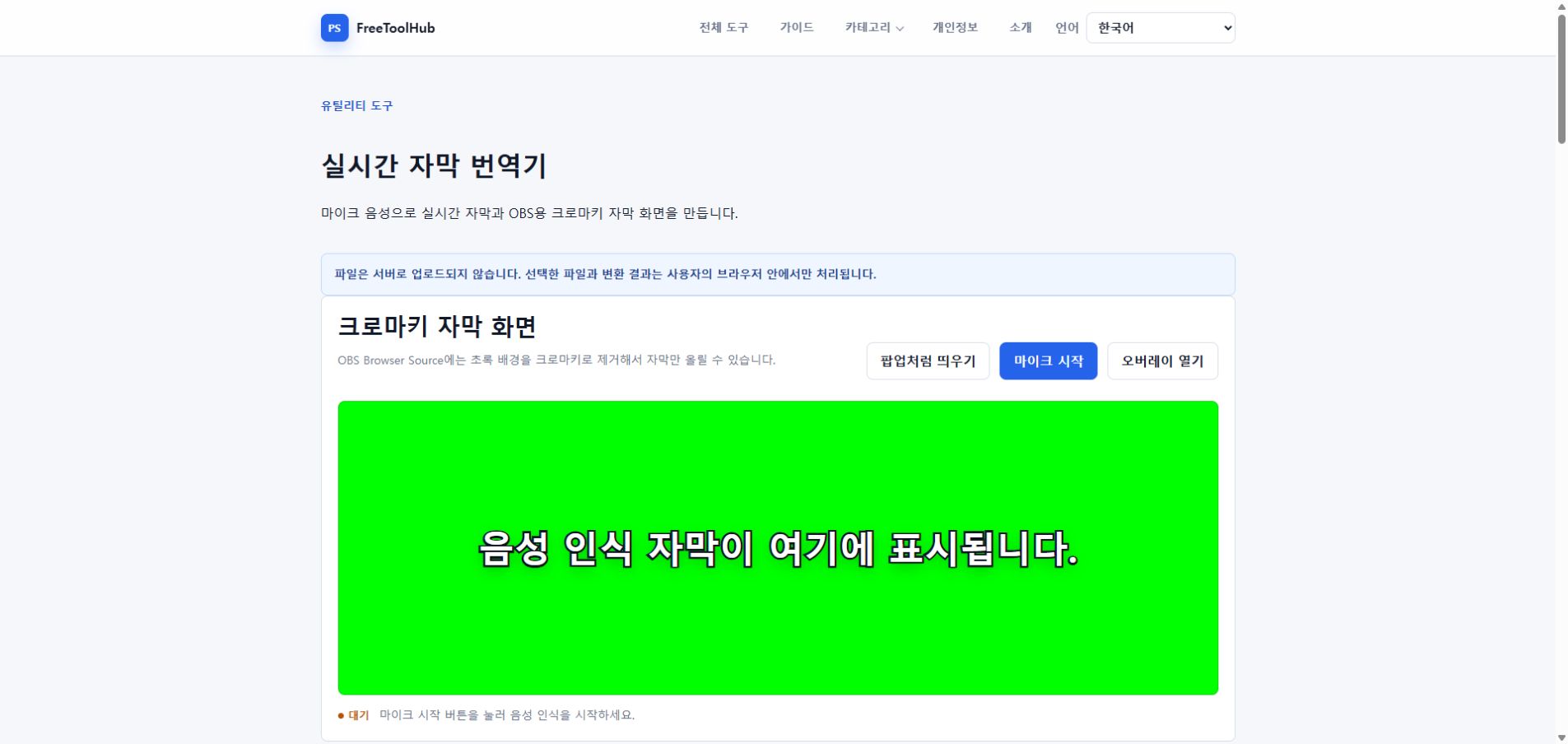
- Test environment
- Chrome 126+ · Windows 11 · HTTPS · microphone permission
- Test case
- microphone · translation · overlay · SRT / VTT
- Observed result
- Recognition, translated lines, the chroma overlay, popup synchronization, and SRT/VTT export were checked as separate stages.
- Known limit
- Recognition and translation availability still depend on browser APIs, microphone permission, language support, and network-backed browser services.
Verify recognition before translation
Start with one recognition language and no translation targets. Confirm that final speech results appear consistently before adding up to three translated lines.
- Use HTTPS and grant microphone permission.
- Select the language you are actually speaking.
- Check the browser diagnostics if recognition stops.
- Add translation targets one at a time.
Prepare the chroma-key overlay
Open the movable overlay, choose a background color that does not appear in the text, and size the panel for the scene where it will be captured.
- Keep subtitle text inside the safe area.
- Use a readable font weight and outline.
- Test left, center, and right alignment.
- Confirm that setting changes reach the open overlay immediately.
Connect it to OBS and keep a transcript
Capture the overlay window or browser view in OBS, remove the solid background with a chroma-key filter, and export the session history when a transcript is needed.
- Match the OBS source size to the overlay size.
- Avoid cropping the lowest caption line.
- Run a short private recording before streaming.
- Download SRT for editors or VTT for web playback.